
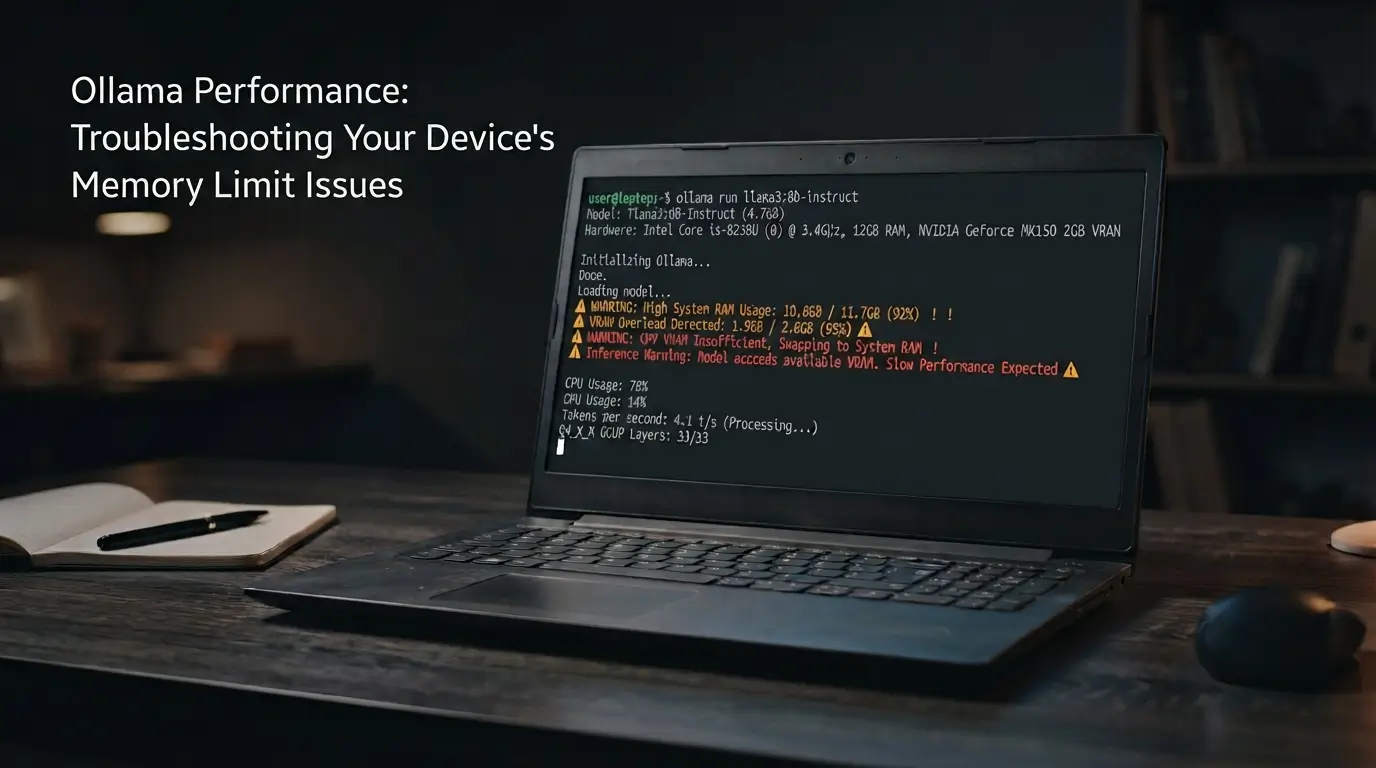
TL;DR: On a low-spec laptop, most Ollama slowdowns are memory pressure. Start with ollama ps to see whether inference is on GPU or CPU and what context is active. If memory is tight, prefer a Q4 quantized variant of the same model, then try a smaller parameter count (8B → 3B → 1B), and lower context length (4096 → 2048) if needed. Close other RAM/GPU-heavy apps, verify you pulled the intended model tag, and confirm your GPU/driver setup. This guide includes copy/paste commands for Windows, macOS, and Linux.
Who this is for: Power users comfortable with a terminal on Windows/macOS/Linux who want practical steps to make local LLMs usable on modest hardware.
Version note: Command names and options can evolve. The instructions below are cross-checked with Ollama’s public docs as of September 2026 (links included). Run ollama --version to confirm your release and consult the linked docs if output or flags differ.
1) Confirm the bottleneck with ollama ps
Open Terminal (macOS/Linux) or PowerShell (Windows) and run:
ollama psTypical output looks like:
NAME                              ID       SIZE   PROCESSOR   CONTEXT
llama3.1:8b-instruct-q4_K_M      7f2c...  4.9G   100% GPU    4096
- PROCESSOR: Whether inference is on GPU, CPU, or mixed. Mixed CPU/GPU often indicates the model or its context doesn’t fit fully in VRAM.
- CONTEXT: Active context length. Larger values use more working memory (KV cache and related runtime data).
Note: The exact columns can vary by Ollama version. If you don’t see these columns, check the docs and update Ollama.
Helpful docs: Ollama docs: context length, Ollama model library.
2) Check real memory pressure while generating
Run a prompt so the model is actively generating. Then check system RAM and GPU memory:
Windows
- Open Task Manager → Performance.
- Check Memory (RAM used) and GPU (dedicated GPU memory used).
- Resource Monitor (resmon.exe) helps dig into Disk (I/O spikes when models are loaded/unpacked).
macOS
- Activity Monitor → Memory → watch Memory Pressure and Swap Used.
- Apple silicon uses unified memory: GPU and CPU share the same pool, so watch overall pressure rather than separate VRAM.
Linux
free -handtop(orhtop) for RAM/CPU.- NVIDIA:
nvidia-smifor GPU utilization and memory. - AMD:
radeontop(package name varies by distro). - Intel iGPU:
intel_gpu_top(in intel-gpu-tools on many distros). - Disk I/O:
iotop(root),iostat(sysstat), or desktop monitors.
Quick interpretation:
- RAM nearly full or swap/page-file growing fast → system RAM pressure.
- GPU memory near full and
PROCESSORshows CPU involvement → the model/context likely doesn’t fit in VRAM. 100% CPUwith an unexpectedly idle GPU → check GPU detection/driver/backend setup (see section 7).
3) Fix: try a smaller quantized variant first (Q4 → lower memory)
Quantization reduces precision to lower memory usage and make models runnable on modest hardware. Trade-off: more aggressive quantization can slightly impact quality. See Ollama’s model pages for available tags.
Find and pull a Q4 variant of the same model:
# Browse available tags in the library (example family):
https://ollama.com/library/llama3.1

# Pull a specific tag (example tag; use a tag that exists in the library page):
ollama pull llama3.1:8b-instruct-q4_K_M

# List locally available models and confirm the exact tag
ollama ls
Test again, then inspect ollama ps and your OS memory tools to see if pressure drops and responsiveness improves.
Don’t use download size alone as a RAM/VRAM calculator. Runtime memory is higher than the file on disk due to context/activation caches and other overhead.
Docs and references: Ollama model library.
4) Fix: if Q4 is still slow, move to a smaller parameter count
If a Q4 variant still causes heavy memory pressure, drop the parameter count while keeping quantization similar:
- 8B Q4 → 3B Q4 → test
- If still tight on an older/very small laptop → 1B Q4 → test
Rule of thumb, not a guarantee (varies by model architecture/context/backends):
- 8 GB system/unified memory: start with 1B–3B Q4
- 16 GB: 3B Q4; if headroom allows, try 8B Q4
- 24+ GB: 8B Q4/Q5 is a more comfortable starting test
Why this works: fewer parameters generally reduce base memory needs; Q4 further lowers footprint; smaller context length lowers the KV cache and working memory (covered next). See context length docs for why longer contexts cost more memory.
5) Fix: reduce context length (KV cache size)
Large contexts consume more working memory. If you previously raised context globally, bring it back down and test.
Per‑model (recommended): Modelfile
Create a Modelfile that sets a smaller num_ctx, then build a custom tag:
# Modelfile
FROM llama3.1:8b-instruct-q4_K_M
PARAMETER num_ctx 2048
# Build and run your customized model
ollama create llama3.1:8b-instruct-q4_K_M-ctx2048 -f Modelfile
ollama run llama3.1:8b-instruct-q4_K_M-ctx2048

# Verify context via ps
ollama ps
Docs: Ollama Modelfile, context length.
Server‑wide (advanced; varies by version)
Some Ollama versions support setting a default context via an environment variable (the name can vary by release). Check the docs for your exact version. Examples:
- macOS/Linux (bash/zsh):
export OLLAMA_NUM_CTX=4096; ollama serve - Windows PowerShell:
$env:OLLAMA_NUM_CTX = "4096"; ollama serve - Windows CMD:
set OLLAMA_NUM_CTX=4096 && ollama serve
For persistent environment variables on Windows, use setx OLLAMA_NUM_CTX 4096 then restart your shell. Prefer the per‑model Modelfile method when possible so other models keep their defaults.
6) Fix: close other RAM/GPU heavy applications
While testing the same model, quit heavy apps (games, video editors, screen recorders, other local LLM servers, and browsers with many tabs). Re‑check ollama ps, RAM, and GPU memory.
7) If you expected GPU inference but see CPU or mixed usage
GPU detection/config issues can force CPU inference even when a GPU is present. Check your platform:
Windows (NVIDIA/AMD/Intel)
- Update to the latest stable GPU driver from your vendor (NVIDIA/AMD/Intel).
- NVIDIA: run
nvidia-smito confirm the GPU is visible and healthy. - Verify Ollama’s Windows GPU backend requirements in the official docs and release notes; ensure your GPU is supported.
Linux
- NVIDIA:
nvidia-smishould show active processes and memory use; confirm the kernel module and driver match. - AMD: check ROCm support for your GPU/distro and confirm with
rocminfo/rocminfo --statsif available; monitor withradeontop. - Intel iGPU: confirm with
intel_gpu_topand that VAAPI/compute dependencies are installed as required by the Ollama backend.
macOS (Apple silicon and Intel)
- Ollama uses Apple’s Metal backend on supported macOS versions. Keep macOS updated.
- Activity Monitor → Window → GPU History shows GPU activity while generating.
General tips:
- Run
ollama servein a terminal and watch for error messages at startup. - Check the Ollama docs/release notes for backend prerequisites per OS/GPU.
Docs: Ollama documentation (installation/backends by platform).
8) Optional: increase swap/page‑file (last‑resort safety net)
More swap won’t make models fast; it can reduce out‑of‑memory crashes while you test—but generation will be slower and heavy swap can wear SSDs over time. Use cautiously.
Windows
- Settings → System → About → Advanced system settings → Performance (Settings) → Advanced → Virtual memory (Change).
- Uncheck “Automatically manage…”, select your system drive, choose “System managed size” or set a larger custom size, click Set, then OK. Reboot if prompted.
Linux (temporary swapfile example)
sudo fallocate -l 8G /swapfile
sudo chmod 600 /swapfile
sudo mkswap /swapfile
sudo swapon /swapfile
# To remove later:
# sudo swapoff /swapfile && sudo rm /swapfile
For persistent swap, add an /etc/fstab entry. Many distros also support zram (check zram-generator or distro tools).
macOS
macOS manages swap automatically; there’s no supported manual sizing. Close apps or add unified memory (different Mac) if sustained pressure remains high.
9) Inspect, verify, and clean up model tags safely
Confirm you’re running the variant you intended:
# Show all local models
ollama ls

# Inspect model metadata (useful to confirm parameters/options)
ollama show "model-name:tag"

# Remove the specific tag you no longer need (quotes help avoid parsing issues)
ollama rm "model-name:tag"
Then pull the exact tag you want and retest. Always verify with ollama ls and ollama ps.
10) Don’t ignore disk I/O and free space
Initial loads may spike CPU and disk (decompression/memory mapping). Keep adequate free space (several GB beyond model size) and watch disk I/O:
- Windows: Resource Monitor (Disk tab)
- macOS: Activity Monitor (Disk)
- Linux:
iotop(root) oriostat
11) Alternatives and trade‑offs when memory is tight
- Prefer Q4 on low memory; try Q5 only if you have headroom and need a quality bump.
- Smaller models (1B–3B) can be surprisingly capable for short tasks and are more responsive locally.
- Lower context reduces memory but shortens how much history the model can retain. Use per‑model contexts so larger models don’t inherit smaller limits.
- CPU or mixed offload may allow fitting into limited VRAM, but generation speed will drop. Treat it as a fallback, not a first choice.
12) Quick, copy‑paste troubleshooting order
- Baseline —
ollama --version; thenollama psand note PROCESSOR and CONTEXT. - Watch memory while generating — OS tools for RAM, swap, GPU memory, and disk I/O.
- Quantization — if on Q5/Q8, pull and test a Q4 variant of the same model.
- Parameter count — 8B → 3B → 1B (keep quantization similar).
- Context — set per‑model
num_ctx(e.g., 4096 → 2048) via Modelfile; verify withollama ps. - Close heavy apps — games, video editors, other LLM servers, big browsers.
- Verify tags —
ollama ls,ollama show; remove wrong tags withollama rm. - GPU setup — confirm drivers/backends; check
nvidia-smi,radeontop,intel_gpu_top, or macOS GPU History.
13) A realistic troubleshooting path on a modest laptop
You have a 16 GB RAM Windows laptop with a mid‑range NVIDIA GPU. You pulled llama3.1:8b-instruct and responses are sluggish. Here’s a focused path:
ollama psshows mixed CPU/GPU. Task Manager shows dedicated GPU memory near max while generating.- Pull a Q4 variant of the same model (
ollama pull llama3.1:8b-instruct-q4_K_M), confirm withollama ls, then test.ollama psnow shows GPU‑only; responses are better. - Long chats still slow down. Create a per‑model Modelfile with
num_ctx 4096(or 2048 if needed), build and test. Memory pressure drops during long runs. - Still hitting occasional stalls while gaming in the background. Closing the game eliminates stalls; keep heavy apps off while using the model.
This preserves model family/quality first (via Q4), then trims runtime memory needs (context), before resorting to a smaller parameter count.
14) When the hardware is the limit (and what to aim for)
If you’ve tried Q4, reduced context, and closed heavy apps—and RAM or (on dGPU systems) VRAM still pegs while ollama ps shows CPU involvement—your laptop likely lacks the memory headroom that model needs. Options:
- Keep the smallest model that runs smoothly and leaves system headroom.
- Move the workload to a machine with more memory (unified memory on Apple silicon, or more RAM + more VRAM on Windows/Linux PCs).
There’s no single “8B always needs X GB” rule because architecture, quantization, and context all matter. Test with your exact model/tag and context target, observe memory headroom during generation, and size hardware accordingly.
References and further reading
Last cross‑checked: September 2026. If you spot a change in Ollama’s CLI or docs, adjust commands accordingly and prefer per‑model Modelfiles to keep configurations explicit and reproducible.