Quick Start (Cheat Sheet)
- Make sure you have a supported Android phone and the latest Google app.
- Check support: Open Settings and search for “Circle to Search.” If it appears, turn it on.
- Use it anywhere: Long‑press the navigation handle (gesture) or Home button (3‑button) to open the overlay, then circle/tap/highlight what you want to search.
Minimum you’ll need (varies by device): a supported Android build, current Google app, Google as your default digital assistant, and an internet connection. Availability and features differ by region and OEM; see Google’s official page: Circle to Search.
What is Circle to Search?
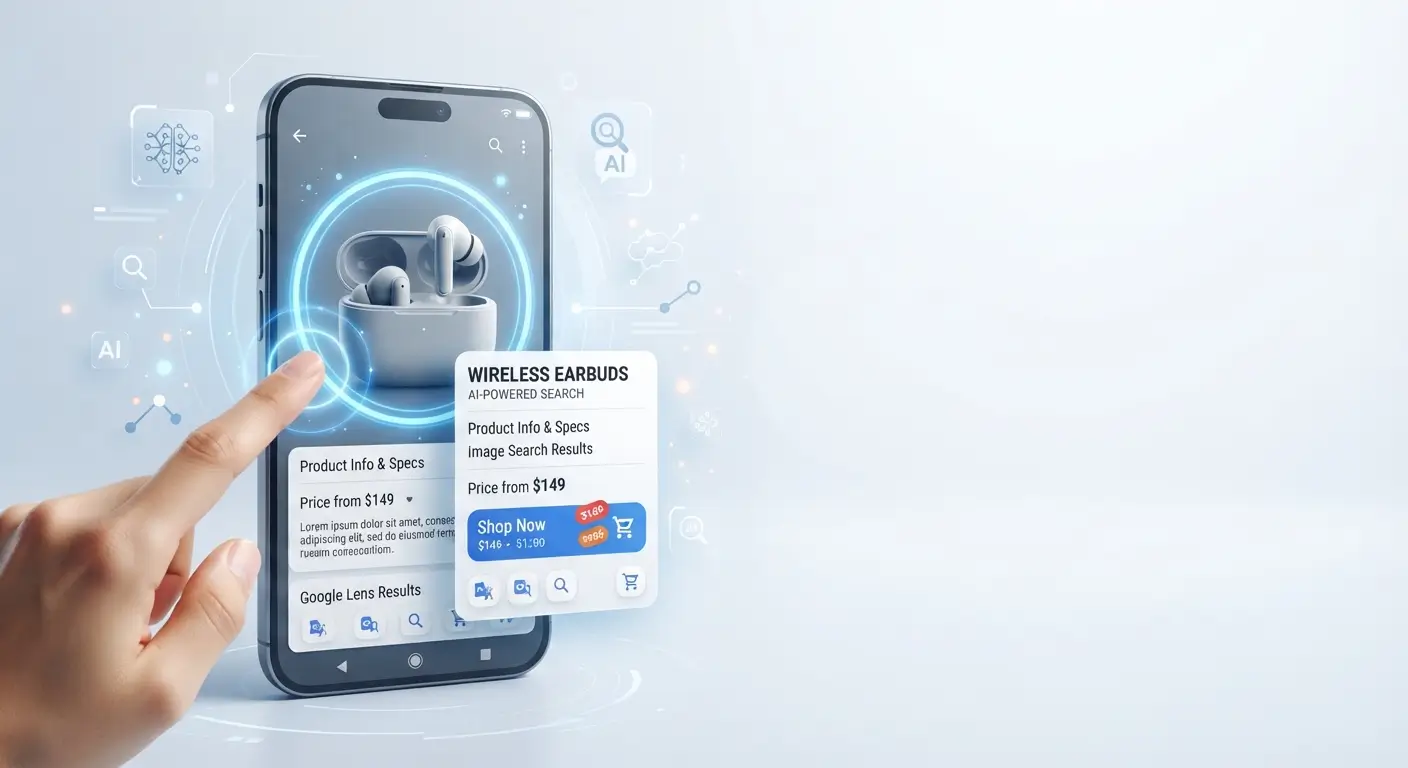
Circle to Search is a Google feature on select Android devices that lets you look up anything visible on your screen—text, images, products, places—without leaving the app you’re in. Touch and hold your nav bar/handle to open a search overlay, then circle, highlight, or tap what you want to know more about. Results load on top of your current screen so you don’t lose your place. See Google’s overview: ways to search: Circle to Search.
How it works (one fast walkthrough)
- Activate — Long‑press the navigation handle (gesture nav) or the Home button (3‑button nav) for ~0.5–1 second. A translucent overlay appears. [On some devices, you may also see a small search panel at the bottom.]
- Select — Use your finger to circle an object, drag to highlight text, or just tap an item. Pinch‑to‑zoom helps with small targets.
- Results — You’ll see Google Search results right in the overlay: similar images, product cards with prices, translation, or standard web results. Some regions may also show AI‑generated summaries in Search. Availability varies by country and account settings; see Google’s AI availability notes within Search Help.
Because it rides on top of your current app, you can keep watching a video, scrolling a post, or reading an article while reviewing results.
Key features (what it’s great at)
- Visual lookup from any app: Identify products, artwork, places, or objects that are already on your screen (e.g., inside YouTube, Chrome, a photo, or a shopping app).
- Translate on screen: Highlight foreign‑language text and get translation inline, powered by Google services.
- Copy text from images: Select text in screenshots, photos, or PDFs to copy into notes, messages, or documents.
- Shopping results: Compare prices, check availability, and find similar items when you spot something you like.
- Contextual Search: For many selections, you’ll see related results and images without typing a query.
Note: Music recognition (identifying songs playing nearby) is not a Circle to Search feature. Use Google’s dedicated options like “Hum to search” in the Google app or device‑specific features (e.g., Now Playing on some Pixel models).
Supported devices and requirements
Support is tied to Android builds and the Google app, and it rolls out by OEM and region. Google’s official page lists availability and examples: Google: Circle to Search. Google and Samsung jointly announced the feature beginning with recent Pixel and Galaxy flagships, with broader support via software updates thereafter. Samsung highlights Circle to Search on Galaxy S24 series and later, and expanded it to select earlier models through One UI updates. See your OEM’s update notes for your exact device.
What we can say with confidence (based on official materials)
- Google Pixel: Circle to Search launched on recent Pixel flagships and has expanded via updates on newer models. Keep your device on the latest Android release and Google app for compatibility. Reference: Google Circle to Search page and Pixel release notes.
- Samsung Galaxy: Available on Galaxy S24 series at launch, with rollouts to select earlier premium devices via One UI updates (region and model dependent). Check Samsung’s software update notes for your device and region. Reference: Samsung Galaxy S24 feature pages and One UI release notes.
- Other OEMs: Some manufacturers have enabled Circle to Search on select models through OTA updates. Availability varies by Android version, device capabilities, and region. Always check your manufacturer’s changelogs and the Google page above.
Minimum requirements (typical)
- A supported Android device with an eligible system update installed.
- The latest Google app from Play Store.
- Google set as your default digital assistant (see steps below).
- Internet connection for search, shopping, translation, and any AI‑powered results.
Circle to Search does not require you to install a separate app. Some on‑screen text extraction can leverage on‑device capabilities, but image understanding and web results typically use Google’s online services. For privacy details, see the section below and Google’s pages linked there.
How to check if your phone supports it
- Open Settings and use the search bar to look for “Circle to Search.”
- If found, open it and ensure the toggle is enabled.
- If it doesn’t appear, update your phone’s system software and the Google app, then restart the phone and check again.
- If still missing, your device/region may not support the feature yet. Confirm on Google’s official page and your OEM’s release notes.
Enable and use: device‑specific notes
On Google Pixel (steps can vary slightly by Android version)
- Update to the latest Android build (Settings → System → System update) and update the Google app.
- Make sure your navigation mode is set (Settings → System → Gestures → System navigation) and remember:
• Gesture nav: long‑press the bottom handle.
• 3‑button nav: long‑press Home. - Set Google as your assistant if needed (Settings → Apps → Default apps → Digital assistant app → Default digital assistant app → Google).
- Now open any app (Chrome, YouTube, Photos, a shopping app), long‑press the nav handle/Home, then circle or highlight what you want to search.
Menu names differ slightly by Android release; if you don’t see the exact path above, use the Settings search box for “System navigation,” “Default apps,” or “Circle to Search.”
On Samsung Galaxy (One UI versions differ by model/region)
- Update your phone (Settings → Software update) and the Google app via Play Store.
- Confirm navigation mode (Settings → Display → Navigation bar). Use:
• Swipe gestures: long‑press the bottom handle.
• Buttons: long‑press Home. - Ensure Google is the default assistant (Settings → Apps → Choose default apps → Digital assistant app → Default digital assistant app → Google).
- Open any app and long‑press the nav handle/Home to trigger Circle to Search.
Depending on your One UI version, Samsung may also surface a Circle to Search toggle in search or advanced features. Use the Settings search box if you can’t find it.
Tips for better results
- Zoom first, then select small objects.
- Highlight only the relevant text or just the object you care about.
- Try a clearer frame if the video is blurry or paused mid‑motion.
- Keep the Google app updated and verify you’re online.
Where it works
Because Circle to Search operates on what’s already on your screen, it generally works across many apps and web pages—e.g., Chrome, YouTube, Google Photos, image galleries, social feeds, shopping and news apps. Some apps and content types block capture (banking apps, DRM‑protected video frames), which prevents selection or returns limited results. That behavior is by design to protect sensitive or rights‑managed content.
Circle to Search vs. Google Lens
They’re related but not identical:
- Context: Circle to Search is for on‑screen content. Google Lens is for the camera and your saved photos.
- Workflow: Circle to Search overlays results without leaving your app; Lens is a separate experience (though it can also analyze screenshots or images already on your device).
- Offline: Both can extract some text offline on certain devices, but most visual understanding and results require internet.
- Use cases: If it’s already on your screen (a product in a video, a paragraph in an article), use Circle to Search. If it’s in the real world (a menu, a plant, a sign), use Lens via the camera.
Apple devices offer features such as Visual Look Up/Live Text. Those are iOS features, not Circle to Search; their behavior, activation, and results differ by Apple model and iOS version.
Privacy and data processing
Circle to Search analyzes the content you choose (what you circle/tap/highlight). Google indicates that your selected content is used to provide relevant results, similar to how Google Lens and Search handle visual queries. Some processing may occur on Google servers to return matches, translations, and web results. You can review and manage your Search activity and privacy controls in your Google Account.
- Google overview: Circle to Search
- Google Safety Center: safety.google
- How Google Lens works with your data: support.google.com
Important: Circle to Search does not continuously record your screen. It acts on the specific region or text you select when you invoke it. Sensitive apps and protected content may block capture entirely.
Known limitations and edge cases
- DRM and protected apps: Premium video streams and some financial or enterprise apps block capture; Circle to Search may not activate or may show limited results.
- Low‑quality frames: Motion blur, reflections, or heavy compression reduce accuracy. Pause videos at a clear frame before circling.
- Very small objects: Zoom in so your selection is tight; avoid including background clutter.
- Region restrictions: Certain AI‑powered features in Search are limited to specific countries and accounts.
Troubleshooting (technical checklist)
If Circle to Search won’t appear
- Confirm support: Settings → search for “Circle to Search.” If missing, update your system and Google app, then reboot.
- Default assistant: Settings → Apps → Default apps → Digital assistant app → Default digital assistant app → Google.
- Navigation mode: Verify whether you’re on gesture or 3‑button navigation, then use the proper long‑press (handle or Home).
- Overlay permission (if applicable): Settings → Apps → Google → Appear on top (a.k.a. “Display over other apps”) → Allow. Some OEM skins surface this under Special access.
- Battery/background limits: If you heavily restrict the Google app, relax those limits or exclude it from optimization to ensure overlays can appear.
- Try a different app: Some apps disable screen capture. Test in Chrome or Photos to isolate the issue.
If results are poor or empty
- Check connectivity (Wi‑Fi/mobile data) and try again.
- Zoom in and re‑select a cleaner area or a single object.
- For text, drag to highlight just the words you need rather than a whole block.
- Try a brighter or sharper frame if you’re paused on a video.
AI results aren’t showing
- AI‑generated results in Search aren’t available in all regions or on all accounts. If unavailable, you’ll still see standard Google Search results.
FAQ
Is Circle to Search free?
Yes. It’s included at no extra cost on supported Android devices. Data charges may apply for internet usage.
Does it work in every app?
It works on what’s visible on your screen in most apps. Some apps (e.g., banking) and DRM‑protected videos block capture by design.
Does it work offline?
No. Most searches (visual matches, web results, shopping, translation) require internet access.
How do I turn it off?
Use Settings search for “Circle to Search” and toggle it off. You can also disable long‑press actions by changing your navigation/assistant settings.
How is it different from Google Lens?
Circle to Search is for on‑screen content without leaving your app. Lens is for the camera and your saved images. See the comparison section above for details.
Changelog and sources
- September 2026: Clarified that music recognition is not part of Circle to Search; added technical prerequisites and troubleshooting details; strengthened privacy language and linked to Google’s Safety Center and Lens data policy; replaced vague device lists with links to official Google and OEM materials. Key references: Google Circle to Search, Google Safety Center, How Google Lens works with your data, Samsung One UI release notes and device feature pages for Galaxy models.
Because OEM and regional rollouts change over time, always confirm the latest availability on Google’s official page and your manufacturer’s update notes.