
Last updated: 12 September 2026. Links and requirements below were re-checked on this date. For the fastest-changing items (drivers, tool support), verify on the linked official pages before you buy.
TL;DR: The short answer
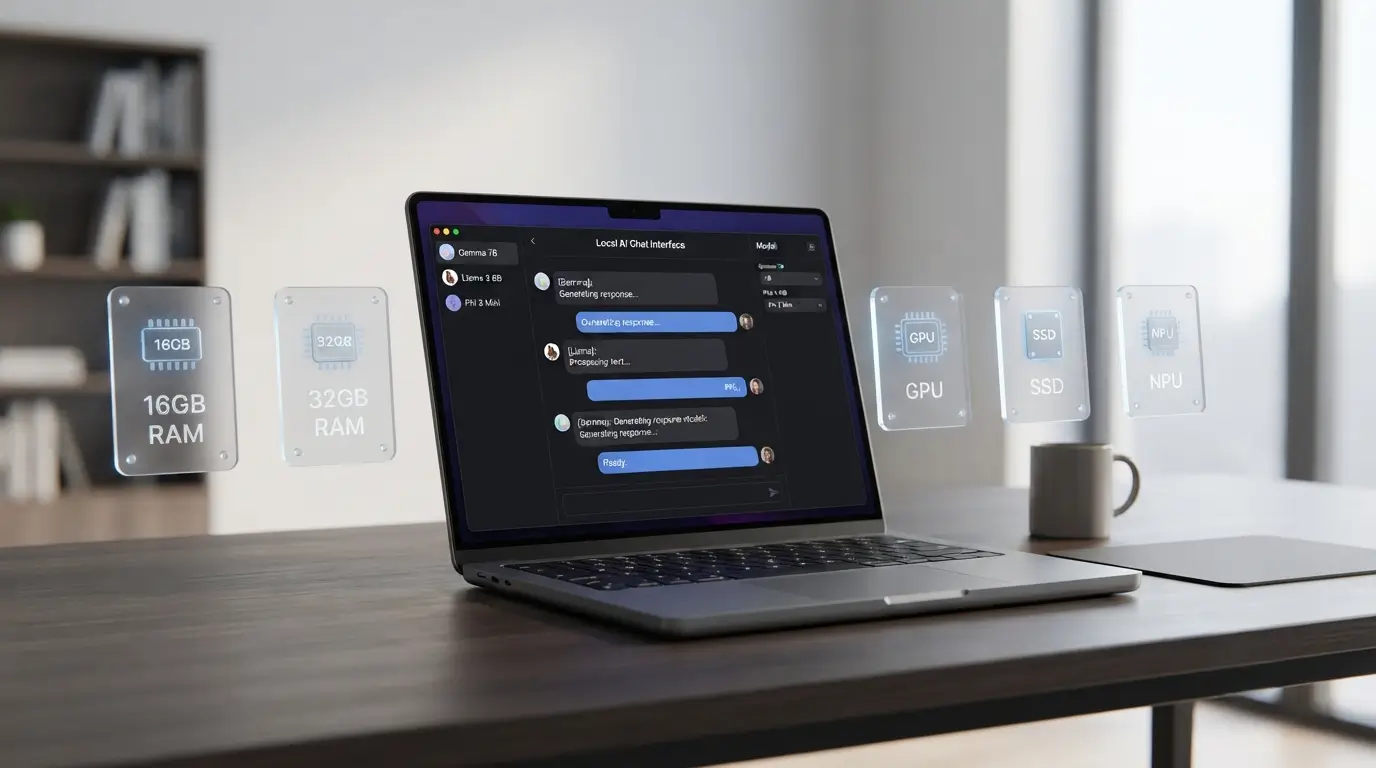
- Yes—most modern laptops can run smaller local AI models. The experience depends far more on RAM, VRAM/unified memory, SSD speed, and cooling than on an “AI PC” badge.
- If you already own a recent laptop with 16GB RAM, you can start today with smaller models and 4-bit quantization.
- If you’re buying new for regular local AI use, 32GB RAM, a fast 1TB NVMe SSD, and either an 8GB+ VRAM GPU or ample Apple Silicon unified memory feel meaningfully better.
- NPUs accelerate specific OS features and a few toolchains, but as of September 2026, most mainstream local LLM stacks still target CPU/GPU first. Treat NPU support as “emerging.”
What does “running AI offline” actually mean?
Local/offline AI runs the model on your laptop—no prompt or document needs to leave your device once the model is downloaded. Tools like LM Studio, Ollama, GPT4All, and Jan wrap popular open models and make on-device inference accessible.
Practical use-cases that work well today on a capable laptop: summarizing long PDFs, drafting/revising emails, troubleshooting code, note search over your files, translation, and short-form reasoning. Extremely large models or very long contexts still favor the cloud unless you have a desktop-class GPU.
Platform and software stack: what changes on Windows, macOS, and Linux
Under the hood, local LLMs use different backends on each platform. Knowing which one your laptop supports avoids setup surprises.
Windows + NVIDIA GPUs
- Primary backend: CUDA/cuBLAS/cuDNN via projects like llama.cpp, and through frameworks (PyTorch CUDA).
- Keep a current NVIDIA Studio/Game Ready driver and a CUDA 12.x runtime as required by your toolchain. See NVIDIA’s CUDA downloads.
- Quick check:
nvidia-smishows GPU model, driver, and free VRAM.
Windows + AMD GPUs
- Backend: ROCm/HIP where supported; DirectML for some ONNX Runtime pipelines. AMD’s official ROCm support is strongest on Linux; Windows support continues to evolve. See ROCm docs and ONNX Runtime DirectML.
- Expect best results on recent RDNA3/3.5 GPUs; verify model/tool compatibility in release notes before buying for AMD on Windows.
macOS + Apple Silicon
- Backend: Apple Metal/ML Compute (MPS) for llama.cpp/Ollama; PyTorch MPS for many ML tasks. See PyTorch MPS.
- Unified memory is shared between CPU/GPU. Choose more upfront (it’s not upgradeable). Heavier models benefit from 24–48GB+ depending on model/context size.
Linux
- NVIDIA: CUDA stack (as on Windows).
- AMD: ROCm has the widest support on Linux—consult the GPU support matrix in the official docs.
What about NPUs?
- Windows Copilot+ PCs (Qualcomm, Intel, AMD) expose NPUs for system features and some ONNX Runtime/DirectML workloads. See Microsoft’s guidance via ONNX Runtime and Copilot+ documentation.
- As of September 2026, widely-used local LLM apps (Ollama, LM Studio, llama.cpp UIs) primarily target CPU/GPU. NPU backends exist for select graphs/models but remain limited. Always check your tool’s release notes for current NPU support.
How model size maps to RAM, VRAM, and storage
Two factors dominate memory needs: parameter count (e.g., 3B/7B/13B/70B) and quantization (compressing weights to 8/6/5/4 bits). Lower-bit quantization reduces RAM/VRAM and speeds up loading, at some cost to accuracy. Many desktop users prefer 4-bit (e.g., Q4_K_M) for a strong balance of speed and quality for 3–13B models.
Approximate guidance (verify per model page)
| Model class | Typical stored size (Q4 gguf) | Comfortable system RAM (CPU inference) | Comfortable VRAM / unified memory (GPU inference) |
|---|---|---|---|
| 2–4B | ~2–4 GB | 16 GB | 4–6 GB |
| 7–8B | ~4–6 GB | 16–24 GB | 6–8 GB |
| 13B | ~7–10 GB | 24–32 GB | 10–16 GB |
| 30–34B | ~16–26 GB | 32–64 GB | 20–24 GB+ |
| 65–70B | ~35–60 GB | 64 GB+ | 48 GB+ (desktop-class or multi-GPU) |
Sources for memory behavior and quantization basics: llama.cpp README and model pages listed below. Exact sizes vary by model family and quantization variant; always check the model’s page in your tool.
Sourced examples: popular models and where to check sizes
The links below point to authoritative pages that show current download sizes and options. Check the “GGUF” or “quantized” files on these pages for exact numbers on your date of purchase.
| Model | Where to check size/variants | Notes | Verified |
|---|---|---|---|
| Llama 3.2 3B / 1B | Ollama Library → Llama 3.2 entries | Great starters for 16GB RAM laptops. | 2026-09-12 |
| Gemma 2 (2B/9B) | Ollama Library or Hugging Face: Google | 2B fits easily; 9B benefits from more RAM/VRAM. | 2026-09-12 |
| Qwen/Qwen2 (7B/14B) | Ollama Library or Hugging Face: Qwen | Popular coding/chat choices; check gguf quantizations. | 2026-09-12 |
| Mistral/Mixtral (7B/8x7B) | Ollama Library or Hugging Face: Mistral AI | Mixture-of-experts (MoE) can have different memory/perf trade-offs. | 2026-09-12 |
| Phi (2/3 mini) | Hugging Face: Microsoft | Efficient small models; good on 16GB machines. | 2026-09-12 |
| DeepSeek models | Hugging Face: DeepSeek-AI | Fast-growing library; verify sizes per variant. | 2026-09-12 |
Storage planning (with a quick reality check)
- 512GB SSD: fine for trying 2–4 small models plus your everyday apps.
- 1TB SSD: better long-term choice for Ollama/LM Studio users who keep several chat/coding/reasoning models.
- 2TB SSD: if you want many large models and vector indexes side-by-side.
Model files add up fast. For instance, five models at ~5–10GB each plus a few local vector indexes and documents can exceed 50GB quickly. You can preview sizes on the Ollama Library before deciding.
Hands-on: two fast ways to get started
Option A: Ollama (CLI-first, works on macOS/Windows/Linux)
- Install:
- macOS (Homebrew):
brew install ollama - Linux:
curl -fsSL https://ollama.com/install.sh | sh - Windows: download installer from ollama.com
- macOS (Homebrew):
- Pull a small model:
ollama pull llama3.2:3b - Chat:
ollama run llama3.2:3b - If you have a supported GPU, Ollama uses it automatically on most setups. To check usage, watch your GPU monitor (
nvidia-smion NVIDIA, Activity Monitor on macOS, vendor tools on Windows). - Troubleshoot OOM/slow:
- Try a lower-bit quantization (e.g., Q4 instead of Q6) of the same model.
- Reduce context length in your client (e.g., 2k → 1k tokens).
- Close memory-heavy apps and retry.
Option B: LM Studio (GUI-first, macOS/Windows/Linux)
- Download from lmstudio.ai and install. Check system requirements (they recommend 16GB RAM minimum).
- Open Settings → Enable GPU acceleration if available, and select the backend listed for your platform (Metal on macOS, CUDA on NVIDIA, DirectML or CPU on other setups).
- Search “Llama 3.2 3B” or “Gemma 2B” in the built-in model hub → Download → Start a chat.
- If the app shows out-of-memory or slow responses, switch to a lower-bit quantized variant, shorten context, or disable long-document features when not needed.
Troubleshooting the common pain points
- Model won’t load or crashes early: you likely ran out of RAM/VRAM. Use a smaller/low-bit quant, close background apps, or upgrade memory.
- GPU isn’t used: update your GPU driver, ensure the correct backend is enabled (CUDA/Metal/DirectML), and verify with
nvidia-smior system tools. - Very slow first response: large gguf files must load from disk—fast NVMe SSDs help a lot. Switching models frequently benefits from higher SSD speeds.
- High fan noise/thermal throttling: laptops with stronger cooling sustain higher token/s for longer. A cooling pad or “performance” fan mode can help.
Why two 32GB laptops can feel wildly different
RAM size just sets an upper bound. Real-world smoothness depends on:
- VRAM or unified memory (how much can run on the GPU)
- Cooling and sustained power limits (whether performance holds over time)
- SSD performance (load/swap times)
- Driver/tool maturity on your platform
Minimum practical specs (by experience tier)
| Laptop tier | What to expect |
|---|---|
| 8GB RAM + iGPU | Only very small models with tight constraints; fine to experiment but not pleasant for daily use. |
| 16GB RAM + modern CPU | Comfortable with 2–4B and many 7–8B models at 4-bit; good for document summary, coding helpers, and learning. |
| 32GB RAM + 8GB VRAM (or Apple Silicon with ample unified memory) | Sweet spot for most people: popular 7–13B models, room for multitasking, and better longevity. |
| 64GB RAM + 16GB+ VRAM | Power users and developers: larger models, longer contexts, and heavier parallel workloads. |
Quantization, formats, and why they matter
Most local apps use GGUF quantized weights for speed and compactness. Lower-bit quantization (e.g., 4-bit) reduces memory needs and accelerates inference on consumer hardware with minimal quality loss for many tasks. If a default model feels slow or won’t load, pick a lower-bit variant from the same model page.
Background reading: llama.cpp’s README and your model’s Hugging Face card explain exact quant choices and trade-offs.
Battery life expectations
Local inference is a sustained, heavy workload. Expect noticeably shorter battery life than office work—especially on GPU-accelerated sessions. If you rely on local AI for long tasks, plan to be plugged in.
Laptop vs desktop, upgradeability, and Apple unified memory
- Desktops deliver more performance per dollar: bigger GPUs, better cooling, simple upgrades.
- Many thin-and-light laptops have soldered RAM; if you can’t upgrade later, buy extra memory now.
- Apple Silicon unified memory is not upgradeable—choose a higher capacity at purchase.
Recommended configurations by user type (examples)
These are example specs, not endorsements of specific SKUs. Always validate current model names, drivers, and prices in your region.
- Budget explorer (portable): modern 8-core CPU, 16GB RAM, 512GB–1TB NVMe, strong cooling for the class, iGPU or entry dGPU. Run 2–4B and some 7–8B Q4 models.
- Mainstream sweet spot: 12–16-thread CPU, 32GB RAM, 1TB NVMe, dGPU with 8GB VRAM (e.g., an RTX 4060-class) or Apple Silicon with 24–36GB unified memory.
- Developer/power user: high-core-count CPU, 64GB RAM, 2TB NVMe, 16–24GB VRAM GPU or Apple Silicon with 48–64GB unified memory, robust thermals.
Hybrid approaches worth considering
- Run small models locally for privacy and latency; burst to a home desktop or cloud for large, one-off jobs.
- Use remote execution in your IDE for heavy tasks while keeping source code local.
Privacy notes
Local apps are generally better for privacy, but still review each app’s settings and policies. Some tools collect optional telemetry or require online downloads/updates. Check the privacy pages and turn off analytics if you prefer.
FAQ
Can my laptop run offline AI models?
Yes—start small and match model size to your memory. A 16GB machine handles 2–4B models comfortably and many 7–8B models at 4-bit. New buyers who plan to use local AI often will be happier with 32GB RAM.
Is 16GB RAM enough?
For learning and light use, yes. The constraint appears when you multitask (many browser tabs, IDEs, containers) or try larger models/contexts. If budget allows, 32GB feels much more relaxed.
Do I need a dedicated GPU?
No—CPU-only works for small models, just slower. A dGPU with 8GB+ VRAM or ample Apple unified memory yields a big speed-up and supports larger models.
Does the NPU help with Ollama or LM Studio?
As of September 2026, most popular local LLM stacks target CPU/GPU backends. Some ONNX/DirectML pathways can use NPUs for specific models, but support is uneven. Check your tool’s release notes to see what’s currently accelerated.
How much SSD do I need?
1TB is a practical long-term target. Models plus indexes and documents add up faster than expected. If you plan to keep many models side-by-side, 2TB avoids constant pruning.
Sources and testing notes
- LM Studio system requirements (accessed 2026-09-12): lmstudio.ai/docs/app/system-requirements
- Ollama (install, model library) (accessed 2026-09-12): ollama.com and ollama.com/library
- llama.cpp (quantization, backends) (accessed 2026-09-12): github.com/ggerganov/llama.cpp
- NVIDIA CUDA (accessed 2026-09-12): developer.nvidia.com/cuda-downloads
- AMD ROCm (accessed 2026-09-12): rocm.docs.amd.com
- ONNX Runtime DirectML (accessed 2026-09-12): onnxruntime.ai
- PyTorch MPS (accessed 2026-09-12): pytorch.org/docs/stable/notes/mps.html
Final verdict
If you want local AI to feel good this year and next, buy for balance: memory first, then GPU/unified memory, then a fast 1TB SSD and solid cooling. Don’t over-index on NPU/TOPS branding. A thoughtful 32GB configuration with an 8GB VRAM GPU (or higher Apple unified memory) will carry most people comfortably through everyday local AI workloads.