
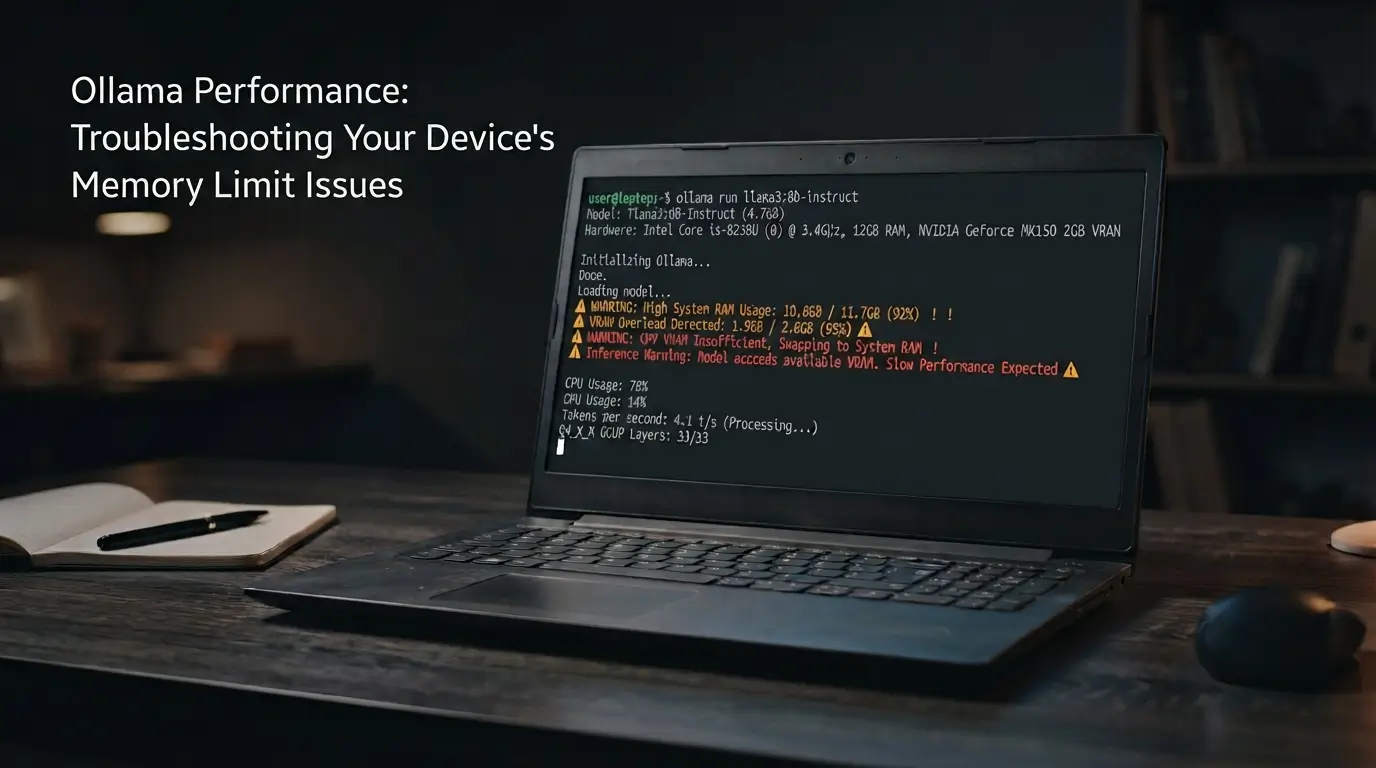
If you are trying to fix Ollama on a low-spec laptop, the problem may appear even when Ollama installs correctly and loads the model. Replies can take too long, RAM usage may stay near full, or the whole system may become sluggish while the model is running. Replies may take too long, RAM usage may stay near full, or the whole system may become sluggish while a model is running.
The usual problem is memory pressure. The model may be too large for your available RAM or VRAM, or a large context window may be using more memory than your laptop can comfortably handle. In some cases, Ollama may also use the CPU when the workload is not fully on the GPU.
This guide focuses on the fixes that matter most on a low-spec laptop. You will check where the bottleneck is, try a lower-memory model, reduce the context length, and decide when the model is simply too heavy for your hardware.
Table of Contents
How to Tell If Your Ollama Model Is Too Big for Your Laptop
A model does not have to crash immediately to be too heavy for your laptop. It may load successfully and still run at an impractical speed.
Watch for these signs:
- Replies take much longer than expected to start or finish.
- The model loads, but text generation is extremely slow.
- Your laptop becomes laggy or temporarily unresponsive.
- System RAM stays close to full while Ollama is running.
- Swap or page-file activity increases, and other apps become sluggish.
- Ollama uses the CPU heavily when you expect GPU acceleration.
- The model repeatedly fails to load.
The important point is that “the model loaded” does not mean “the model fits well.” If the model cannot stay comfortably within the available memory, the laptop may spend more time moving data or relying on slower CPU and system-memory resources.
Context length can add to the problem. A model that seems manageable with a smaller context may use much more memory when the active context window is increased. This is why you should check the running model before downloading another model or changing random Ollama settings.
The quickest place to start is ollama ps. It can show whether the running workload is using the GPU or CPU and what context length is active.
First, Run ollama ps and Find the Bottleneck
Before switching models or changing memory settings, check how Ollama is running the current model.
Open Terminal, PowerShell, or your command-line app and run:
ollama ps
Look at the PROCESSOR and CONTEXT columns. PROCESSOR helps you see whether the running model is using the GPU, CPU, or a combination of both. CONTEXT Shows the active context length.
If PROCESSOR Shows 100% GPU
100% GPU is the preferred result when you expect GPU-backed inference. Ollama’s context documentation uses 100% GPU in its example and recommends avoiding CPU offloading for the best performance.
If you see 100% GPU but Ollama is still very slow, check the active CONTEXT Value and system memory use next. The context window or overall memory pressure may still be contributing to the slowdown.
If PROCESSOR Shows 100% CPU
100% CPU means the current model is running on the CPU path instead of the GPU.
On a laptop, CPU inference can be much slower than GPU-backed inference, especially with a larger model. However, do not immediately assume that low VRAM is the cause. GPU detection, compatibility, or configuration problems can also prevent Ollama from using the GPU as expected.
If you want to understand why the processor used for AI inference affects performance, our NPU vs GPU vs CPU comparison explains how these processors handle AI workloads differently.
Check Task Manager, Activity Monitor, or your Linux system monitor to see whether the GPU is active and whether RAM is close to full.
If PROCESSOR Shows Mixed CPU/GPU Use
If ollama ps shows CPU and GPU involvement; the workload is not staying entirely on the GPU.
On a low-spec laptop, limited VRAM is one possible reason. Part of the workload may need to rely on CPU and system-memory resources, which can make generation much slower.
Ollama does not provide a simple percentage-by-percentage guide that explains every mixed PROCESSOR split. Treat CPU involvement as a diagnostic clue rather than proof that your GPU is faulty.
Check GPU memory pressure next. If VRAM is close to full while Ollama is running, the current model, quantization level, or context length may be too demanding for the available GPU memory.
Check the CONTEXT Value Too
Do not ignore the CONTEXT column while checking PROCESSOR.
A larger context window requires more memory. This means Ollama may run normally with a smaller context but slow down when the active context length is much higher.
For now, note the CONTEXT value shown by ollama ps. You will use it later in this guide to decide whether reducing the context length is worth testing.
If PROCESSOR shows CPU involvement, RAM is nearly full, or the laptop is still painfully slow, check your actual RAM and GPU memory use before changing the model.
Check Whether RAM or VRAM Is Causing the Slowdown
After checking ollama ps, look at the laptop’s actual memory use while the model is running.
Do this with Ollama actively generating a reply. Memory usage while the laptop is idle will not show you the same pressure created by a loaded model.
You are mainly looking for three things: system RAM staying close to full, GPU memory running out of headroom, or the CPU working heavily while the GPU remains unexpectedly idle.
On Windows
Open Task Manager by right-clicking the taskbar and selecting Task Manager. Go to the Performance tab.
Select Memory and check how much RAM is in use while Ollama is running. If memory stays close to full and the laptop becomes sluggish, system RAM may be the bottleneck.
Next, select GPU and check GPU activity and dedicated GPU memory use. If dedicated GPU memory is close to its limit, the model may not have enough VRAM headroom.
Pay attention to these warning signs:
- RAM remains nearly full during generation.
- Dedicated GPU memory is close to its limit.
- CPU usage stays high while GPU activity is unexpectedly low.
- Windows and other apps become slow when the model is running.
You can also use the Processes or Details view to find other applications using large amounts of memory. Do not close Windows system processes at random. Focus on apps you recognize and do not need while testing Ollama.
On macOS
Open Activity Monitor and select the Memory tab.
On an Apple silicon Mac, CPU and GPU workloads use a shared unified memory pool. This means you should not think of RAM and VRAM as completely separate budgets in the same way you would on a laptop with a dedicated GPU.
Check Memory Pressure and Swap Used while Ollama is generating a response.
If memory pressure rises and swap use keeps increasing, the model may be competing with macOS and other applications for the available unified memory. The model can still run, but performance may become much worse once the system is under heavy memory pressure.
Also, sort the process list by memory use. Look for other large applications running at the same time as Ollama.
On Linux
Open a terminal and run:
free -h
Check the available memory while your Ollama model is running.
You can also run:
top
Use it to check whether Ollama or another process is consuming a large amount of system memory or CPU resources.
If your laptop has a supported NVIDIA GPU and the NVIDIA driver tools are installed, run nvidia-smi to check GPU utilization and memory use while Ollama is generating a reply.
The goal is not to optimize every Linux process. You only need to confirm whether system memory is under pressure or the model is relying heavily on CPU resources.
RAM or VRAM: Which One Is the Problem?
Use these symptoms as a quick guide:
| What you see | Likely bottleneck to check |
|---|---|
| RAM stays nearly full | System RAM |
| Swap or page-file use rises | System RAM pressure |
| Dedicated GPU memory is close to full | VRAM |
ollama ps shows CPU involvement and GPU memory is full | The model may not fit comfortably in the available VRAM |
100% CPU with unexpectedly idle GPU | Check GPU use, detection, or compatibility |
| Long chats make Ollama progressively harder to run | Context length and memory pressure |
These are diagnostic clues, not absolute rules. For example, 100% CPU by itself does not prove that your laptop has insufficient VRAM.
If RAM or GPU memory is already under pressure, the next step is to reduce how much memory the model itself needs.
Fix 1: Switch to a Smaller Quantized Model
If RAM or VRAM is already under pressure, check the model’s quantization before replacing it with a completely different model.
Quantization stores model data at lower precision, which can reduce the memory needed to run the model. On a low-spec laptop, that can be the difference between a model staying within the available memory and running under constant memory pressure. The trade-off is that more aggressive quantization can reduce output quality or accuracy. For a deeper look at why smaller model formats use fewer resources, see our comparison of quantization vs pruning for edge AI models.
For a low-spec laptop, the important difference is simple:
| Quantization | Relative memory use | When to try it |
|---|---|---|
| Q4 | Lower | First test when RAM or VRAM is limited |
| Q5 | Higher than Q4 | Use when the laptop has more memory headroom |
| Q8 | Higher than Q4 and Q5 | Avoid as the first troubleshooting choice on weak hardware |
Starting with Q4 is a practical troubleshooting rule, not an official Ollama RAM or VRAM requirement.
If You Are Using Q8 or Q5, Try Q4 First
Suppose you are already running an 8B model. You do not necessarily need to move to a 3B model immediately.
First, check whether a Q4 variant of the same model is available in the Ollama model library.
Your troubleshooting path should look like this:
8B Q8 → 8B Q4 → test again
or:
8B Q5 → 8B Q4 → test again
This lets you reduce the model’s memory demand while staying with the same general model family and parameter count.
After switching to Q4, run the model and check:
ollama ps
Look at PROCESSOR again. Then check RAM and GPU memory use in your operating system.
You are looking for practical improvement: lower memory pressure, less CPU involvement, or more responsive text generation.
Do Not Judge the Model by Download Size Alone
A common mistake is to see a model’s download size and assume the same amount of RAM or VRAM is all it needs.
For example, an Ollama library variant of llama3.1:8b-instruct-q4_K_M is listed at about 4.9 GB. That does not mean any laptop with slightly more than 4.9 GB of free memory will run it smoothly.
The running model may need additional memory for context and other runtime data. If GPU memory is insufficient, CPU and system-memory involvement can also change the laptop’s performance.
Use the download size as a clue, not as a complete memory requirement.
What If Q4 Is Still Too Slow?
If you are already using Q4 and Ollama still causes high memory pressure or painfully slow generation, do not keep trying more compressed variants at random.
The model’s parameter count may simply be too large for your laptop.
That is the point where you should move to a smaller model.
Fix 2: Reduce the Model Parameter Count
If a Q4 model is still too slow or keeps your laptop under heavy memory pressure, move to a smaller parameter count.
You will often see model sizes described as 1B, 3B, 8B, or larger. The B refers to billions of parameters. In general, a smaller parameter-count model is easier to run on memory-limited hardware.
For example, your next troubleshooting step might look like this:
8B Q4 → 3B Q4 → test again
If a 3B model is still too demanding on a very limited laptop, you can test a 1B Q4 model.
If you are unsure whether your laptop is suitable for local AI in the first place, our guide to running offline AI models on a laptop explains the hardware specs that matter before you choose a model.
Practical Starting Points for 8GB, 16GB, and 24GB+ Memory
Ollama does not publish a universal RAM or VRAM requirement table for every parameter count. Model architecture, quantization, context length, and CPU/GPU use can all change the actual memory demand.
Troubleshooting rule of thumb: Use these as starting points, not guaranteed compatibility limits.
| Available system or unified memory | Practical starting point |
|---|---|
| 8GB | Try a 1B–3B Q4 model first |
| 16GB | Start with 3B Q4; test an 8B Q4 model if memory pressure stays controlled |
| 24GB+ | An 8B Q4 or Q5 model is a more comfortable starting test; larger models still need checking |
These are practical starting points, not official Ollama hardware requirements.
An 8GB laptop, for example, should not be assumed to run every 3B model equally well. Other apps still need memory, and a larger context window can increase the model’s runtime memory demand.
The same caution applies to a 16GB laptop. An 8B Q4 model may be worth testing, but the fact that it loads does not guarantee smooth generation.
Do Not Use Parameter Count as a RAM Calculator
Parameter count is useful for comparing model sizes, but it is not a direct RAM calculator.
Two models with the same parameter count can have different model sizes or runtime behavior. Quantization and context length also affect memory pressure.
This is why the troubleshooting order matters. If an 8B Q4 model is slow, test a 3B Q4 model under the same conditions. Keep the context similar and check ollama ps again.
Then compare:
PROCESSORoutput- RAM use
- GPU memory use
- swap or page-file activity
- response speed
If the smaller model is noticeably more responsive and reduces memory pressure, the larger model was probably a poor fit for your laptop.
What About a Laptop Without a Dedicated GPU?
If your laptop uses integrated graphics or runs Ollama on the CPU, be more conservative with model size.
Start with a 1B or 3B Q4 model and test actual generation speed. CPU-only operation can run local models, but larger models may be too slow for practical everyday use even when they successfully load.
Do not use model loading as your only test. Generate a few replies, watch system memory, and check whether the rest of the laptop remains responsive.
If a smaller Q4 model still struggles, context length is the next setting to check.
Fix 3: Reduce Ollama’s Context Length
If a smaller or Q4 model still puts your laptop under memory pressure, check the CONTEXT value you noted earlier from ollama ps.
Run:
ollama ps
Look at the CONTEXT column for the running model.
A larger context window gives the model more room for prompts and conversation history, but it also increases memory requirements. On a low-spec laptop, an unnecessarily large context can make an otherwise usable model harder to run.
Try a 4096 Context First
If you previously increased Ollama’s context length, bring it back to 4096 and test the model again.
When manually starting the Ollama server on macOS or Linux, you can set the context length for the server process with:
OLLAMA_CONTEXT_LENGTH=4096 ollama serve
Then run your model and check:
ollama ps
Confirm that the CONTEXT Value reflects the smaller setting.
Now compare the model’s response speed and RAM or GPU memory pressure with your previous test.
Still Under Memory Pressure? Test 2048
If the laptop is still struggling, try 2048 as a more aggressive troubleshooting test:
OLLAMA_CONTEXT_LENGTH=2048 ollama serve
A 2048 context is not an official universal Ollama recommendation for low-spec laptops. It is a practical test to find out whether context-related memory use is contributing to the slowdown.
After restarting the server with the new value, run the model again and use:
ollama ps
Check whether:
CONTEXTChanged to the lower value.PROCESSORBehavior changed.- RAM or GPU memory pressure dropped.
- The laptop stays more responsive.
- Replies generate more smoothly.
If performance improves after lowering the context, the previous context setting was contributing to the memory pressure.
The trade-off is a shorter working context. Ollama has less room for long prompts and conversation history, so the model may lose earlier details sooner.
Set a Smaller Context for One Model
If you do not want to change the general server context, you can create a model with a smaller num_ctx value in a Modelfile.
Create a Modelfile with:
FROM your-model

PARAMETER num_ctx 2048
Replace your-model with the model you are actually using.
Then create the customized model:
ollama create low-memory-model -f Modelfile
Run the new model and check it with:
ollama ps
This approach is useful when one larger model needs a smaller context, but you do not want to apply the same context choice to every model you run.
If Lowering Context Does Not Help, Go Back to Model Size
Lowering context can reduce memory pressure, but it cannot make every oversized model suitable for weak hardware.
Run the same model with the lower context and compare ollama ps memory use and response speed. If the laptop becomes more responsive, keep the smaller context.
If there is little improvement and RAM or VRAM remains under heavy pressure, the model itself is probably still too demanding. Move to a smaller parameter-count model instead of repeatedly lowering num_ctx.
Fix 4: Close Apps Using RAM or GPU Memory
Before deciding that your laptop cannot handle the model, close other apps that are using large amounts of RAM or GPU memory.
Do this while testing the same Ollama model. Closing heavy apps gives Ollama more memory headroom and helps you confirm whether another workload is making the problem worse.
Start with:
- Other local LLM servers or AI tools.
- AI image-generation apps.
- Games.
- Video editors.
- OBS or other screen recorders.
- Browsers with many open tabs.
On Windows, open Task Manager and check the Processes tab. Sort by Memory to find apps using the most RAM. You can also check GPU activity for applications using graphics resources.
On macOS, open Activity Monitor > Memory and sort the process list by memory use. Check Memory Pressure and Swap Used again after closing large apps.
Do not close system processes or unfamiliar services at random. Quit applications you recognize and do not need for the Ollama test.
Then run the same model again and compare its response speed and memory use.
If Ollama becomes noticeably faster after closing a game, another AI tool, or a memory-heavy browser session, the other application was reducing the memory headroom available to your model.
However, closing background apps will not make an oversized model suitable for weak hardware. If RAM or VRAM immediately fills again and Ollama remains extremely slow, continue to the next check.
Fix 5: Check That You Pulled the Right Model Variant
If Ollama is still much slower than expected, check the exact model variant installed on your laptop.
Ollama models can have different parameter sizes and quantization variants. A model name may look familiar, but the specific tag can point to a larger or higher-precision variant than the one you intended to run.
First, list the models installed locally:
ollama ls
Find the exact model name and tag you are using.
Next, compare that model with its listing in the official Ollama model library. Next, compare that model with its listing in the official Ollama model library. Check the parameter count, quantization variant, and listed model size.
For example, confirm whether you are running:
- A 3B or 8B variant.
- Q4, Q5, or Q8 quantization.
- The exact model tag you intended to pull.
If you expected a small Q4 model but installed a larger parameter-count or higher-memory variant, that can explain why RAM or VRAM pressure is much higher than expected.
Check the Model Before Replacing It
Do not delete the model just because Ollama is slow.
First, compare the installed model name with the model library and ask:
Is the parameter count larger than I intended?
Am I using Q5 or Q8 when a Q4 variant is available?
Is the listed model size much larger than I expected?
If the model details match what you intended, go back to your ollama ps and memory checks. The bottleneck may be the laptop’s available memory rather than the wrong model variant.
Remove an Oversized Model You Do Not Need
If you confirm that the installed model is not the variant you want, note its exact local name from ollama ls.
Then remove it with:
ollama rm <model>
Replace <model> with the exact local model name.
For example, the basic command structure is:
ollama rm model-name:tag
Check the model name carefully before running the command so you do not remove a different local model.
After removing the oversized variant, pull the smaller parameter-count or Q4 variant you actually want to test.
Then run the new model and check:
ollama ps
Compare PROCESSOR, CONTEXT, RAM use, GPU memory pressure, and response speed with the previous model.
If the smaller variant runs smoothly while the previous one kept the laptop under heavy memory pressure, you have found a model-fit problem rather than a general Ollama installation problem.
When Your Laptop Hardware Is the Limit
Not every Ollama slowdown has another software fix.
If you have already reduced the model’s memory demand and the laptop still struggles, the hardware may be the limiting factor for that specific model.
Look at the results of the fixes you have already tried. The hardware is more likely to be the limit when several of these problems remain:
- You are already using a Q4 model.
- You moved to a smaller parameter-count model.
- You reduced the context length.
- You closed major RAM and GPU memory consumers.
- RAM still stays nearly full while the model is running.
- Swap or page-file activity remains high.
ollama psstill shows heavy CPU involvement when you expected GPU-backed inference.- The laptop becomes unresponsive during generation.
- The model repeatedly fails to load.
- Acceptable response speed only returns when you switch to a much smaller model.
One warning sign by itself is not always enough. For example, 100% CPU can also point to a GPU detection or compatibility problem. But if RAM is full, the system is swapping, the model is already Q4, and a smaller context does not help, continuing to change Ollama settings is unlikely to fix the main bottleneck.
Use the Smallest Model That Runs Reliably
The best model for a low-spec laptop is not the largest model you can force to load.
If an 8B Q4 model makes the laptop unresponsive but a 3B Q4 model generates replies smoothly, the 3B model is the better fit for that device.
You may lose some model capability by moving to a smaller parameter count, but you gain a setup that is actually usable.
Keep the model that:
- Generates replies at an acceptable speed.
- Leaves enough memory for the operating system.
- Does not cause constant swap or page-file pressure.
- Let the rest of the laptop remain responsive.
When an Upgrade May Be Necessary
If your work specifically requires a larger model or a longer context window, using a smaller model may not meet your needs.
At that point, more system RAM, VRAM, or unified memory may be necessary. The exact upgrade depends on the model and how you use it, so do not rely on a universal rule such as “8B always needs X GB of RAM.”
Ollama does not publish a universal RAM or VRAM requirement table for every model and parameter count.
Use your troubleshooting results instead. If the same model remains memory-bound after trying Q4, reducing context, and freeing memory, your current laptop may not have enough memory headroom for that workload.
That is the point to stop changing random settings and either use the smaller model that works or move the workload to hardware better suited to the model.
Quick Ollama Low-Spec Laptop Fix Order
If you are not sure which fix to try first, use this order:
- Run
ollama ps. CheckPROCESSORandCONTEXTfor the running model. - Check RAM and GPU memory use. Look for nearly full system memory, swap or page-file pressure, or dedicated GPU memory close to its limit.
- Check the model’s quantization. If you are using Q5 or Q8, test a Q4 variant of the same model.
- Reduce the parameter count. If Q4 is still too heavy, move from an 8B model to a 3B model, or from 3B to 1B on very limited hardware.
- Lower the context length. Test 4096 first if you previously increased the context. Try 2048 as a stronger low-memory troubleshooting test if the laptop still struggles.
- Close major memory consumers. Quit other local LLM servers, AI tools, games, video editors, screen recorders, and memory-heavy browser sessions.
- Verify the exact model variant. Use
ollama lsand compare the model tag with the Ollama model library. - Run the model again. Recheck
ollama ps, RAM, GPU memory pressure, and response speed.
Change one major thing at a time when possible. If you switch models, lower context, and close several apps together, you may improve performance without knowing which change actually fixed the problem.
If a smaller Q4 model runs smoothly but the larger model repeatedly fills memory or makes the laptop unresponsive, the larger model is probably a poor fit for that device.
Conclusion
When Ollama is painfully slow on a low-spec laptop, start by finding the bottleneck instead of changing random settings. Run ollama ps, check RAM and GPU memory pressure, and see whether the current model is staying on the GPU or involving the CPU.
If memory is the problem, try a Q4 variant first. Move to a smaller parameter-count model if needed, then reduce the context length and close other heavy memory users.
If the same model remains unusably slow after these fixes, use the smaller model that runs reliably or consider hardware with more memory for that workload.