
Introduction
iPhone crashes suddenly during calls, games, or camera use, making it one of the most frustrating tech problems users face. Whether your iPhone keeps restarting, freezing on a black screen, or getting stuck on the Apple logo, these unexpected shutdowns often feel completely random. For most users, iPhone crashing issues seem to happen without warning. The device may freeze, show a black screen, reboot on its own, or get stuck on the Apple logo.
While iPhones are known for stability, no smartphone is immune to failure. Crashes usually happen when software stress, hardware wear, or resource overload pushes the system beyond safe operating limits. The tricky part? The same symptom can come from completely different root causes.
This guide breaks down what’s actually happening behind the scenes, based on real-world repair patterns, system diagnostics behavior, and known performance limits — plus the fixes that genuinely work.
Quick Summary
- iPhone crashes can be caused by software bugs, battery degradation, memory pressure, or hardware faults.
- Random restarts often indicate battery instability, power-management problems, or watchdog timeout events.
- App freezes are commonly linked to memory pressure and software conflicts.
- Repeated crashes even after a factory reset often indicate battery, sensor, storage, or hardware-related issues.
- Crash logs and battery health checks can help identify the root cause.
Table of Contents
Problem Overview: What Users Experience
iPhone common crash-related behaviors include:
- Sudden restarts without touching the phone
- Device freezing and becoming unresponsive
- Apple logo boot loop
- Black screen, but the phone still vibrates or makes sounds
- Apps closing repeatedly
- The phone shuts down when hot
- Restarting every few minutes
These are not random events — they are usually system protection responses.
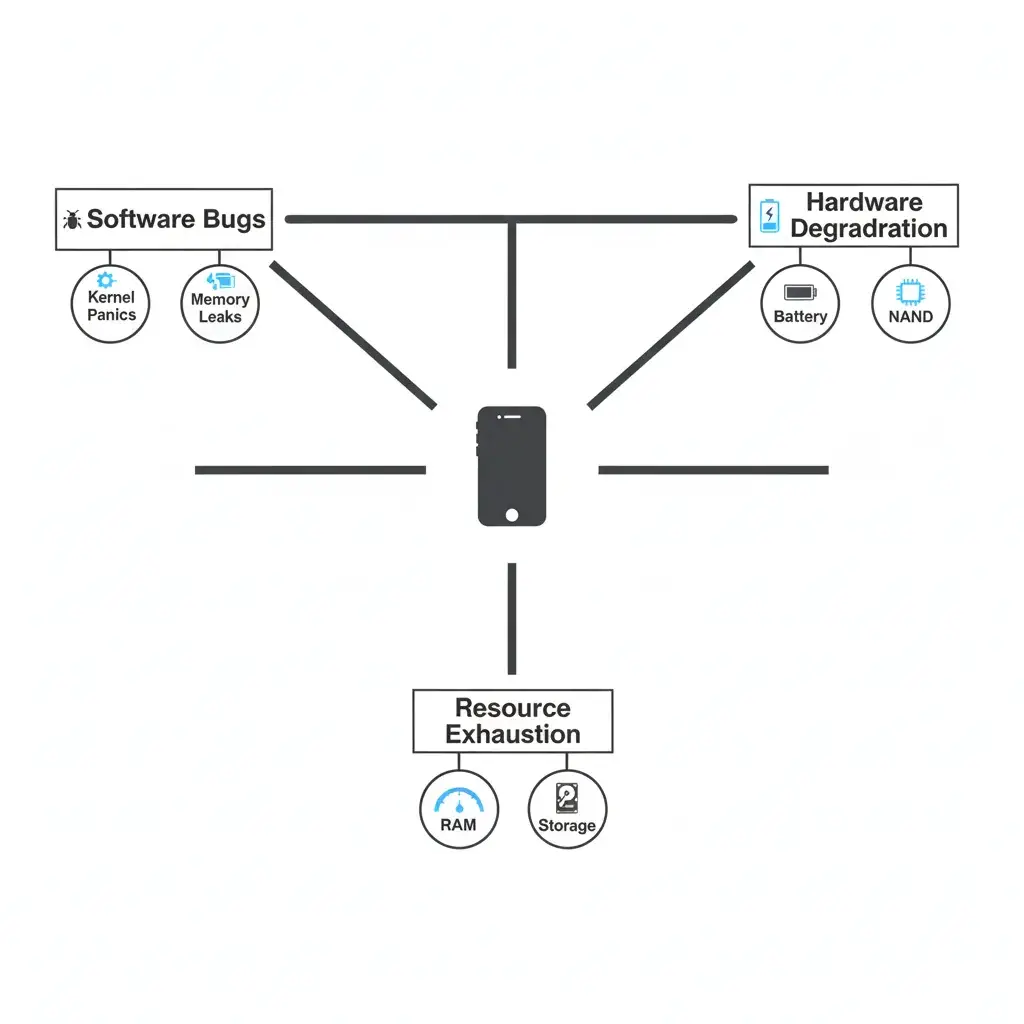
Why iPhones Crash: Technical Causes Behind iPhone Crashing
1. Software Failures
Modern iOS systems manage millions of processes, often powered by on-device AI features that require significant computational resources. When something critical fails, the device forces a restart to prevent damage.
Common software triggers:
- Kernel panics – iOS kernel panics are critical system-level crashes documented in Apple’s crash reporting documentation.
- Memory leaks – Apps consuming RAM without releasing it
- Userspace watchdog timeouts – Apps or services freeze for too long
- Buggy iOS updates – Especially early versions
- Corrupt system files – Interrupted update or restore
- Problematic third-party apps
2. Hardware Degradation
Even perfect software cannot compensate for failing components.
Frequent hardware-related causes:
| Component | What Happens |
|---|---|
| Battery wear | Voltage drops under load → sudden shutdown |
| Charging port flex damage | Missing sensor errors → periodic restarts |
| Power button flex faults | Kernel panic resets |
| NAND storage wear | Data read/write errors → crashes |
| Logic board micro-cracks | Random reboots after drops |
| Sensor failures | Missing data → system panic |
If crashes persist after a factory reset, the hardware is likely.
3. Overheating
High temperatures trigger emergency shutdowns.
Heat sources:
- Gaming
- Gaming, 4K video recording with AI scene detection, and intensive background processes can cause overheating.
- Charging while using
- Hot environments
- Background indexing after updates
Thermal protection prevents damage, but it looks like a crash.
4. Resource Exhaustion
iPhones need free space and memory to operate smoothly; otherwise, iPhone crashing can start..
- Low storage (<10%) causes instability
- Heavy apps can consume all the RAM
- Background processes after updates stress the system
When resources run out, apps close or the system restarts.
– Fast Diagnosis Guide
| What Happens | Most Likely Reason | First Thing To Try |
|---|---|---|
| Apple logo appears suddenly | System panic/hardware fault | Update iOS |
| Freezes during gaming | RAM or overheating | Let the phone cool |
| Restarts every few minutes | Sensor or flex issue | Backup + repair check |
| Crashes when storage is full | Storage exhaustion | Free space |
| Shuts down at 20–40% battery | Battery voltage drop | Check battery health |
Which iPhone Models Experience Crash Issues Most Often?
Research from Apple Support Communities, Reddit discussions, and repair technician reports suggests that crash complaints are not evenly distributed across all iPhone generations.
The iPhone 11 frequently appears in discussions involving kernel panics, reboot loops, and battery-related instability. iPhone 12 users commonly report freezing followed by unexpected restarts, often linked to system-service watchdog timeouts. iPhone 13 complaints are more closely associated with battery degradation and sudden shutdowns, while iPhone 14 and newer models generally experience fewer hardware-related failures and more update-related software issues.
Importantly, the evidence does not suggest that any specific iPhone model is inherently defective. In most cases, crashes are caused by battery aging, system-service failures, hardware faults, or software updates exposing an existing weakness rather than a flaw in the device itself.
How to Check Crash Evidence on Your iPhone
Many users don’t realize that iPhones actually record detailed crash data internally. This information can help determine whether the issue is software-related or hardware-triggered.
To access crash logs:
- Open Settings
- Go to Privacy & Security
- Tap Analytics & Improvements
- Select Analytics Data
Inside this section, you may see files labeled:
- panic-full
- JetsamEvent
- thermalmonitord
- watchdog
- log-aggregated
Frequent panic-full entries often indicate system-level crashes. While users may not understand the technical codes inside these logs, repeated entries can signal that the device is encountering serious instability.
Technicians often use these logs to identify patterns such as battery faults, overheating events, or missing hardware sensors. While interpretation requires expertise, the presence of frequent crash logs itself is a sign that the issue is deeper than a simple app bug.
Warning Signs Before a Major Crash
Some users report that crashes occur shortly after installing a new iOS version. This does not necessarily mean the update is defective.
After a major update, iPhones perform background tasks such as:
- Photo re-indexing
- Spotlight search database rebuilding
- File system optimization
- App compatibility adjustments
These processes can temporarily increase CPU load, battery consumption, and device temperature. If a battery is already degraded or storage is nearly full, this additional strain may expose underlying hardware weaknesses.
Most update-related instability resolves within a few days once background tasks finish. Persistent crashing beyond that period may indicate a separate issue.
What Apple Crash Logs Actually Reveal
Many users assume an iPhone crash is caused by a buggy app or a recent iOS update. However, crash diagnostics often tell a different story.
Apple devices generate logs such as panic-full reports, Jetsam events, and watchdog timeout records. These logs help identify whether the problem is related to battery performance, memory pressure, thermal monitoring, or a failing hardware component.
For example:
- Jetsam events often indicate memory pressure rather than a hardware failure.
- Watchdog timeouts occur when a critical system process becomes unresponsive.
- Kernel panic logs frequently point to power, sensor, or hardware-related faults.
This is why professional technicians often examine crash logs before recommending repairs or replacements.
What Actually Fixes iPhone Crashing Issues
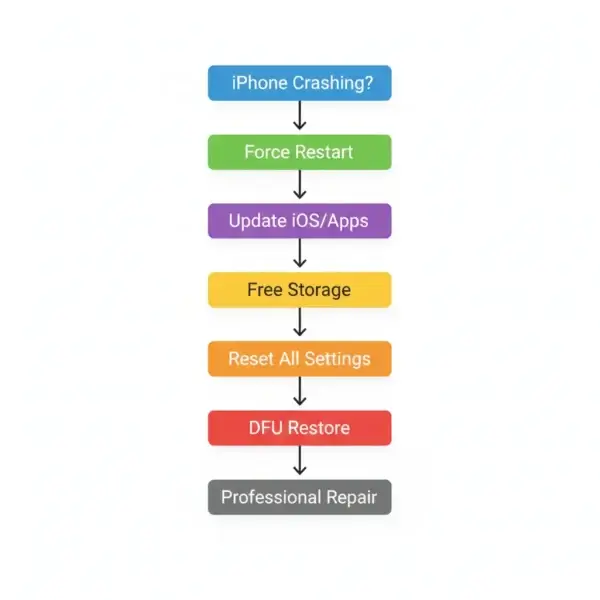
Restart (Temporary)
-Clears minor glitches only.
Update iOS: Keep your iPhone updated with the latest iOS version from Apple to fix known bugs and improve stability.
-Fixes known software bugs.
Free Storage
-Keep at least 10–15% free.
Remove Problem Apps
-Uninstall apps that crash often.
Reset All Settings
-Fixes configuration conflicts.
Full Restore / DFU Restore
-Reinstalls the entire system.
Battery Replacement
-Most effective if health <80%. Check your iPhone’s battery health in Settings to determine if replacement is needed.
Professional Repair
-Find an authorized Apple service provider for hardware issues that require professional diagnosis.
What Most People Get Wrong
- Closing all apps does not stop iPhone crashes
- A factory reset doesn’t fix hardware
- Cheap chargers can cause instability
- Ignoring overheating damages the internals
Preventive Measures
- Keep iOS updated to ensure compatibility with newer AI features and local processing capabilities.
- Maintain free storage
- Avoid extreme temperatures
- Use certified chargers
- Monitor battery health
- Back up regularly
Who Is Most Affected
Older devices
- Phones with worn batteries
- Devices with low storage
- Heavy gamers/power users
- Phones repaired with poor-quality parts
Why iPhones Restart Instead of Showing Errors
Unlike desktop systems, iPhones are designed to restart automatically during critical failures. This prevents deeper corruption or hardware damage.
Instead of showing a technical error screen, iOS forces a reboot to recover to a stable state. While this may seem sudden, it is actually a protective mechanism.
Industry Direction
Apple improves stability through:
- Frequent iOS updates
- Hardware-software optimization
- Battery performance management
- Advanced diagnostic logs
But increasing device complexity means crashes cannot be eliminated.
How to Prevent Future iPhone Crashes
- Keep at least 10–15% storage free
- Update iOS and apps regularly
- Avoid extreme temperatures
- Use certified charging accessories
- Replace degraded batteries
- Back up device routinely
- Avoid unauthorized system modifications
These practices help reduce stress on both hardware and software.
Common Myths About iPhone Crashes
Several misconceptions appear repeatedly in support forums and social media discussions.
Myth 1: Every iOS Update Causes Crashes
While some updates introduce temporary bugs, updates often reveal existing battery, storage, or hardware problems that were already developing before installation.
Myth 2: Every Crash Means Hardware Failure
Many crashes are caused by memory pressure, software conflicts, or watchdog terminations and do not require hardware repairs.
Myth 3: Low Storage Is Always the Main Cause
Although extremely low storage can contribute to instability, battery health, system services, memory pressure, and hardware diagnostics are usually more reliable indicators of the underlying issue.
Conclusion
iPhone crashing is usually a system safety response to software errors, overheating, battery instability, or hardware damage. While occasional iPhone crashes may be harmless, repeated restarts are a warning sign requiring immediate attention.
Start with software fixes. If iPhone crashes continue after restore, hardware is likely involved.
In short: iPhone crashes are protection mechanisms — not random failures. Identifying the cause early prevents bigger problems.
FAQs
Q: Do iOS updates cause crashes?
Sometimes, early versions contain bugs, usually fixed later.
Q: Can full storage crash my iPhone?
Yes, low storage can cause instability.
Q: Is battery health linked to crashes?
Yes. Weak batteries cause shutdowns under load.
Q: How to know hardware vs software?
If a restore doesn’t fix it, it’s hardware.
Q: What causes the iPhone to crash?
iPhone crashing is typically caused by software bugs, low storage, battery degradation, overheating, or hardware failures. Identifying the crash pattern helps determine whether it’s a software issue (fixable with updates) or a hardware problem (requiring repair).